Sound Show Pro includes a Remote Web App that lets you control your soundboard from another device, like a phone, tablet, or even a second computer.
This feature is part of the Pro version of Sound Show, and it’s perfect if you want to trigger sounds while away from your main setup or if you want an additionnal interface (streaming, tabletop RPG sessions, live shows, etc.)
In this tutorial, you’ll learn how to start the server, open the remote page, and use the web interface to browse categories and play sounds.
What Is the Remote Web App?
The Remote Web App is a browser-based controller for Sound Show.
It is an alternative to the Remote App that will work on more devices: Remote App
Once enabled, it lets you:
- Play sounds remotely
- Browse categories
- Control players (play/stop/position)
- Control volume
- Choose which output device to use
- Use a phone-friendly layout
All from a simple web page.
1 - Open the Server Panel
To use the remote interface, Sound Show must run a local server.
If you don’t see the server panel:
- Open the top menu View
- Click Server
This will display the Server panel inside Sound Show.
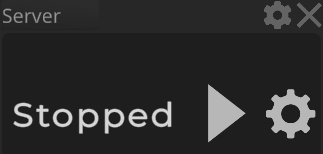
2 - Start the Server
In the Server panel:
- Click Start Server
- Confirm that the server is now running
Once the server is active, Sound Show can generate a remote access page for your devices.
3 - Open the Remote Web Page (or Scan the QR Code)
After starting the server, open the server configuration page.
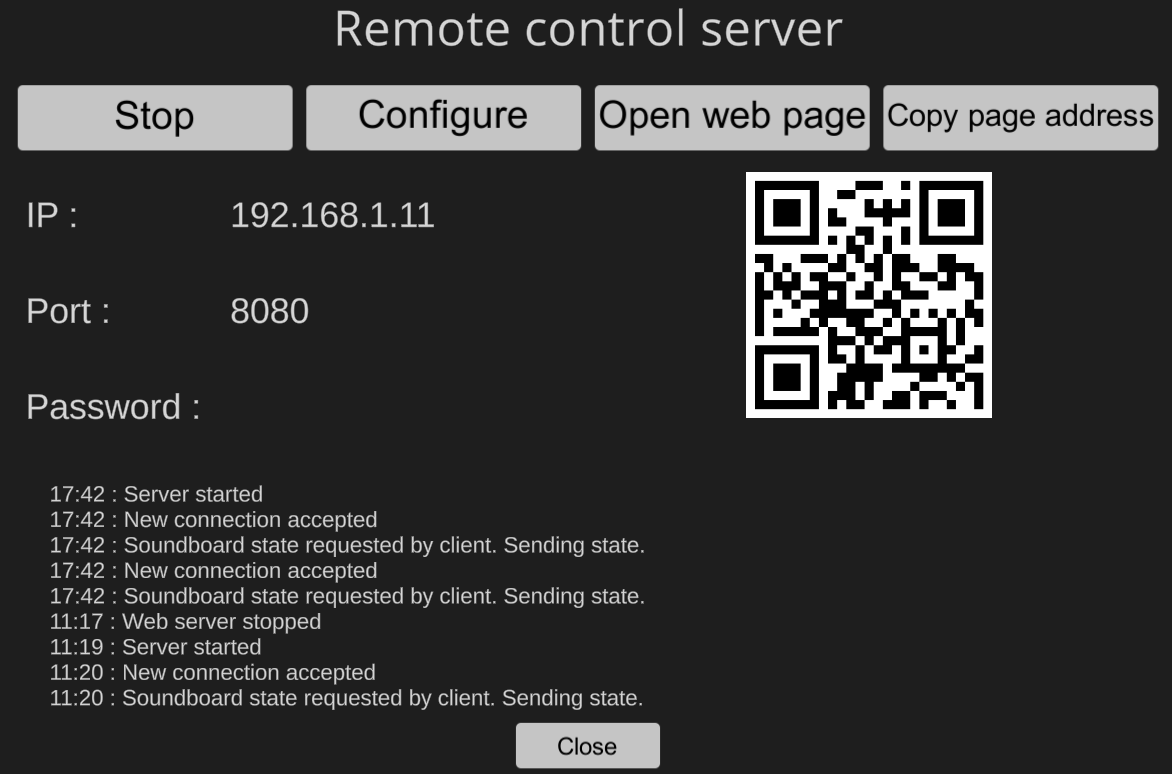
On the right side, you’ll see two easy ways to connect:
Option A - Open the remote page on your computer
Click Open Web Page and your browser will load the remote interface.
Option B - Connect from your phone
Scan the QR code with your phone camera to instantly open the remote web app.
This is the fastest way to set up a phone or tablet controller.
4 - Use the Remote Interface
Once the remote page opens, you’ll notice it looks very similar to the normal Sound Show interface.
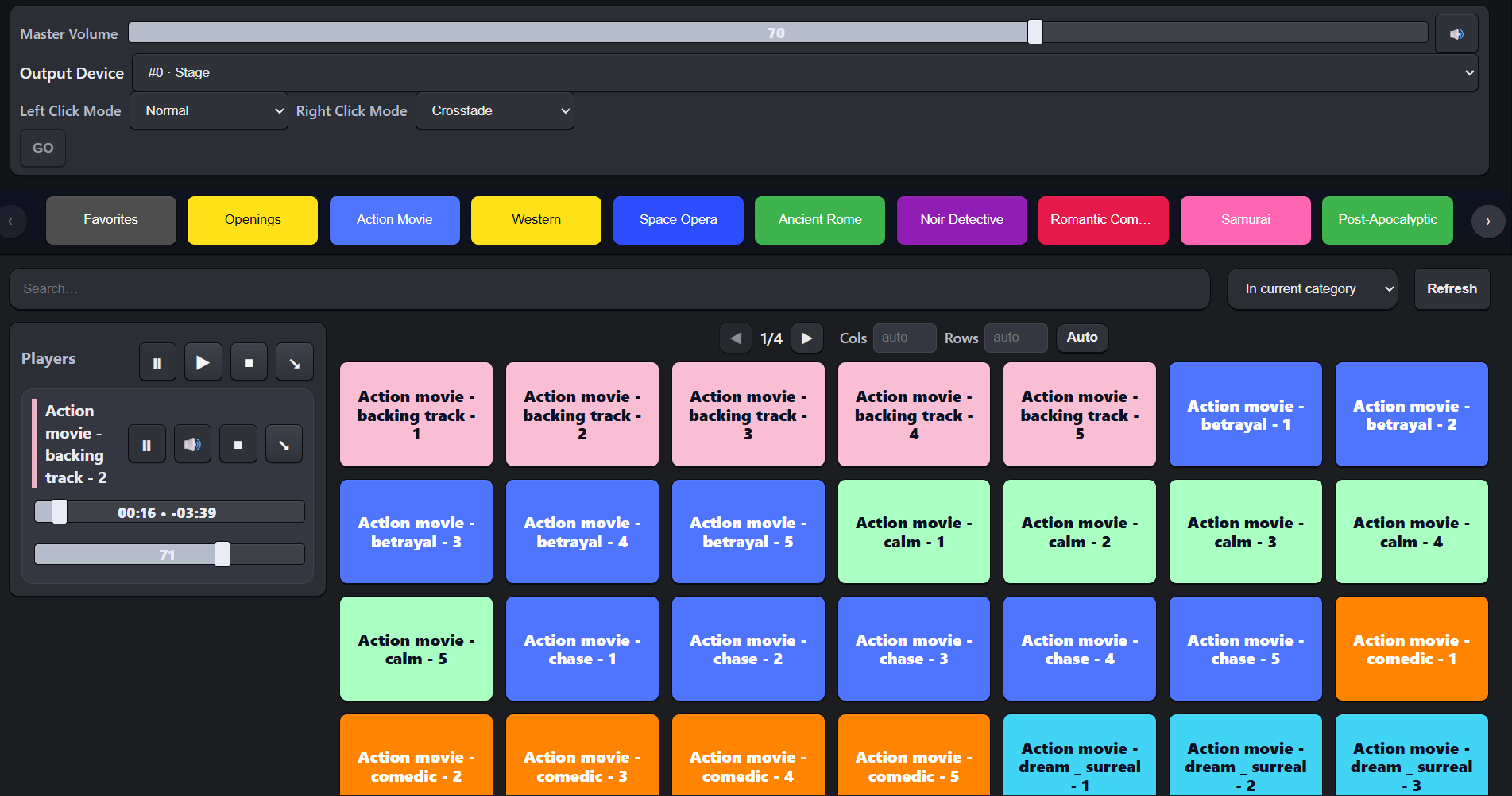
From the remote page, you can:
Control the master volume
You have a master volume slider directly on the remote interface.
Choose the output device
You can select the device where the sound should be sent.
This is useful if you have multiple audio outputs (speakers, virtual cable, stream mix, etc.).
Use left click / right click mode
Just like in Sound Show, you can switch between left click and right click behavior. (by default left click to layer sounds and right click to crossfade)
Browse categories and trigger sounds
You can navigate through categories and play sounds normally.
Phone Layout Mode (Mobile Friendly)
The remote web app also includes a layout designed for phones and tablets.
You can enable a phone-like layout, and in that mode:
- The players appear in a compact section
- You can hide or show the player controls
- The interface becomes easier to use on small screens
This works smoothly on both tablets and phones.
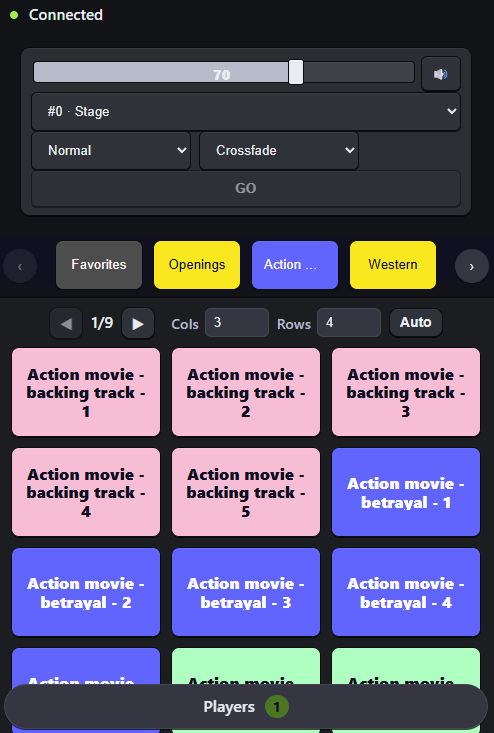
Customize the Grid (Rows and Columns)
You can also customize how many buttons appear on screen, allowing you to have a trade-off between the number of items immediately accessible and the size of the buttons
Icon Support
The remote interface supports icons, just like the main Sound Show UI.
Using the “Go” Button (Instructions Support)
Sound Show Remote also includes a Go button if your setup contains an instruction.
In the video example:
- An instruction is added in Sound Show
- The remote interface automatically displays a Go button
- Pressing it starts the player
This is useful if your workflow uses instructions or more advanced setups.
Remote Player Controls
From the remote interface, you can control active players, including:
- Start, Pause, Stop playback
- Control playback position (seek)
- Control player volume
Conclusion
The Sound Show Remote Web App is a powerful Pro feature that turns any browser into a soundboard controller. You can now control your Sound Show soundboard from your phone, tablet, or another computer.