If you’ve got a big sound library neatly organized into folders and subfolders (like Medieval Fantasy → Ambiences / Music / SFX / Epic Finale, etc.), Sound Show can import it in a few different ways and each one is useful depending on how you like to browse and trigger your sounds.
This tutorial walks through the three import modes Sound Show offers when you drag a folder containing subfolders into a category.
The Setup: Importing a Folder Library
In the example from the video, we’re importing a folder called:
“Medieval Fantasy”
Inside it, there are multiple subfolders, each containing different sound files.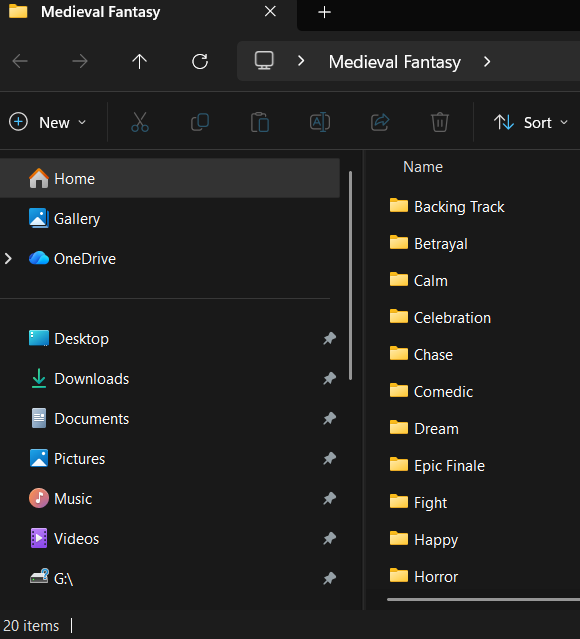
To import it:
- Open Sound Show
- Drag and drop your parent folder directly into the categories panel
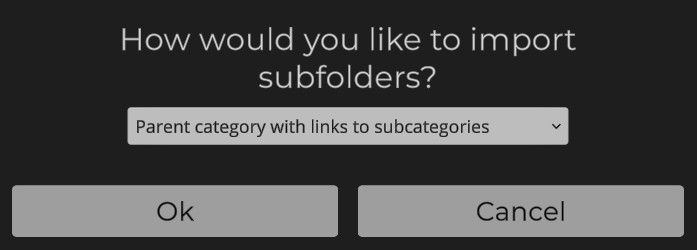
As soon as you drop it, Sound Show will open a popup asking:
“How do you want to import subfolders?”
Option 1: One Category With Everything (Simple Import)
This is the most straightforward method.
What it does
- Sound Show imports all audio files
- Everything ends up inside one single category
- The subfolder structure is ignored
Why you’d use it
- You want a quick import with zero complexity
- You prefer browsing sounds in one big list
- You already use search/filtering and don’t care about folder structure
Result
After importing, you can immediately play sounds from the category and use category filtering to narrow things down (for example: only “sad” sounds).
Option 2: One Category + Tags Based on Subfolders
This option is similar to Option 1… but smarter.
What it does
- Sound Show imports everything into one category
- Each sound is automatically tagged using the name of the subfolder it came from
So if you had:
- Medieval Fantasy / Sad
- Medieval Fantasy / Battle
- Medieval Fantasy / Epic Finale
Then sounds inside those folders will automatically receive tags like:
- Sad
- Battle
- Epic Finale
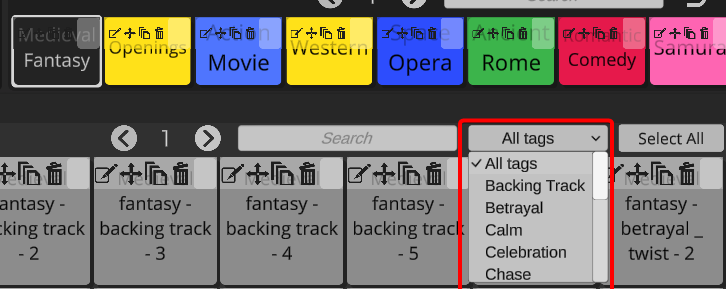
Why it’s useful
This is one of the best options if you like working inside a single category but still want organization.
You can now:
- Filter by tag instead of folder
- Select groups easily (example: select all “Sad” sounds)
- Apply batch changes quickly (like setting a color)
Bonus: Fast bulk editing
Because all items are still in the same category, you can:
- Filter by a tag
- Use Select All
- Set a color or adjust settings in one go
This makes managing big libraries way easier.
Option 3: Parent Category With Links to Subcategories (Folder Structure Preserved)
This option is for people who love their folder structure and want Sound Show to mirror it exactly.
What it does
- Sound Show creates a parent category
- For each subfolder, it creates a subcategory
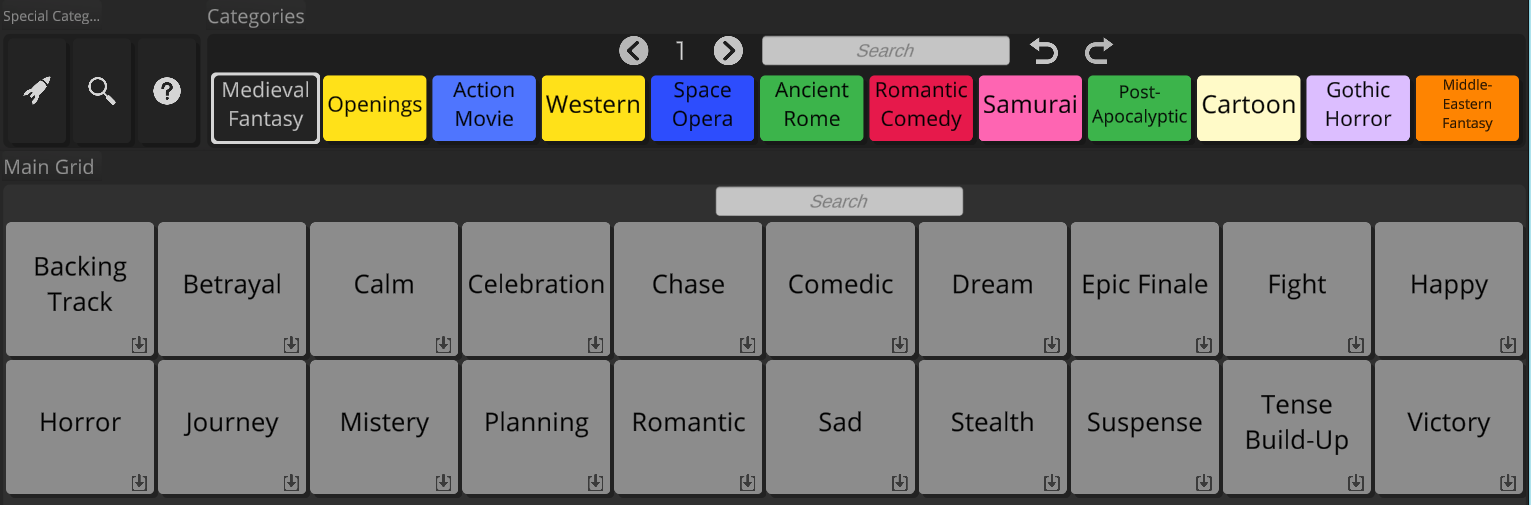
- The parent category contains buttons/links that let you open each subcategory
So inside your imported category, you’ll see something like:
- Ambiences
- Battle
- Sad
- Epic Finale
Clicking one of those buttons takes you into that subcategory.
Why it’s useful
- You want Sound Show to behave like a file browser
- Your library is huge and you want a clean interface
- You prefer navigating by “folders” instead of tags
Example
Clicking Epic Finale opens the Epic Finale category where you can trigger those sounds.
Then you can go back to the root category anytime.
Hidden Categories: What’s Going On?
One detail that’s important in this third method:
Sound Show creates the subcategories as hidden by default.
That means:
- You don’t see them in the normal category list
- But they still exist and can be accessed through the parent category links
How to view hidden categories
There’s a toggle in the top of the categories panel that lets you show hidden categories (it is visible only in edit mode and if there are hidden categories)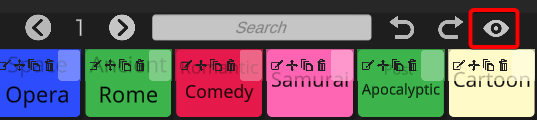
Once enabled, you’ll see all the subcategories created during the import.
Making Subcategories Visible (Optional)
If you want those subcategories to appear normally in your category list, you can.
To do that:
- Show hidden categories
- Find the imported subcategories
- Uncheck the Hidden option
Once they’re visible, you can customize them like any other category:
- Change their color
- Rename them
- Edit layout
- Reorganize them